PhotoRescue Plus
- 3.9
- Rating
- 100.00K
- Installs
- Free
- Price

 Analysis by App-foxy
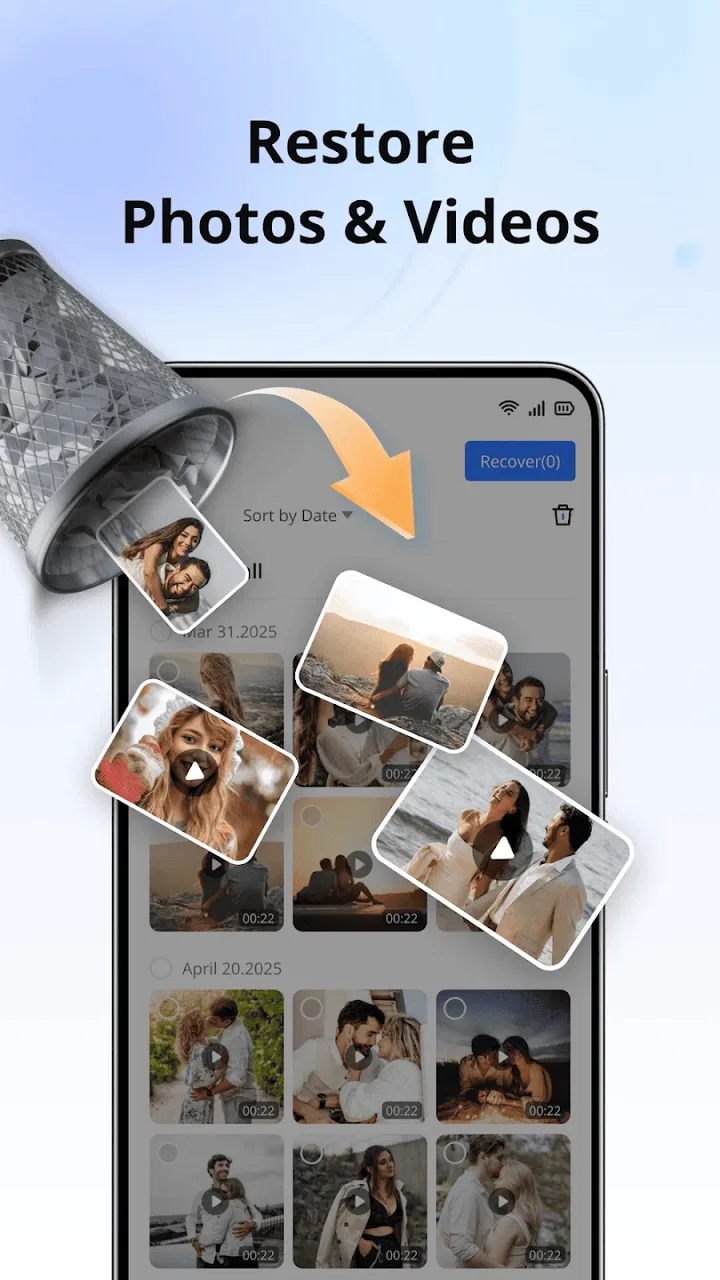
Recovering a deleted file is usually a race against clutter. The longer I keep using a phone after an accidental deletion, the more likely it becomes that the space once occupied by that file will be reused. That is where PhotoRescue Plus fits: it is a free tools app from Last Minute Flights Corp. focused on bringing back deleted photos, videos, and documents through a straightforward recovery workflow.
I approached it as I would any recovery utility: not as a magical undo button, but as a practical first attempt when something important disappears. The app has a 3.9 average from around 650 ratings and has passed 100K installs, which suggests that plenty of people are trying it for the same stressful problem. It is rated for Everyone, and its current version is 1.24, with support beginning at Android 7.0.
My overall impression is cautiously positive. The cleanest results come when I use it soon after deletion, keep the scan focused, and treat recovered files as a separate batch that needs checking. It is most useful for a recent mistake or a file that has vanished from the gallery without an obvious explanation. It is less convincing as a replacement for backups, and I would not rely on it alone for irreplaceable work.
You May Also Like

 Blood Strike: 2.5 Anniversary
Blood Strike’s Loadouts Turn Every Drop Into a Tactical Gamble
A close look at Blood Strike’s custom loadouts: how fast access to signature weapons reshapes its battle royale rhythm, rewards preparation, and narrows the gap between fights.

 Pandora - Music & Podcasts
Pandora’s Music Is Easy to Start, but Harder to Recover
Pandora’s strength is its low-effort path from a seed to a station. Its weak spot is how much confidence it asks you to place in connection, setup, and quiet recovery.

 8 Ball Pool
 Is Built on Rivalries, Rematches, and Routine
A close look at the rivalries, rematches, shared routines, and unanswered safety questions that turn a quick pool match into a persistent mobile community.

 Samsung Music
’s Quiet Strength Is Playing What You Already Own
Its reach comes less from spectacle than from dependable access to a personal library. That simplicity is both the app’s strongest retention engine and its ceiling.

 AccuWeather: Weather Radar
AccuWeather Review: A Quick, Clear Forecast for Everyday Decisions
For everyday plans, the best forecast is the one you can understand quickly. AccuWeather makes rain timing, radar, and local conditions easy to act on, with a few trade-offs.

 Hill Climb Racing
Why Hill Climb Racing Still Turns Crashes Into One More Run
A tiny car, a bumpy hill and one more upgrade: Hill Climb Racing keeps resurfacing because its simple chaos makes every near-miss feel personal.
More From Our News Desk
View All News


My baseline recovery workflow with PhotoRescue Plus
The first thing I do is stop treating the phone normally. I avoid taking new photos, downloading large files, recording video, or installing several other apps. Those activities can write new information into storage, potentially reducing the chance of finding an older deleted item. This is not a special feature of the app; it is simply the sensible habit that gives any recovery tool a better opportunity.
After opening PhotoRescue Plus, I start with the type of file I actually need. If a single picture disappeared, I do not begin by searching through every possible document and video. A narrower search makes the results easier to review and reduces the time spent looking at irrelevant thumbnails. When the missing item is a PDF or another document, I use the same principle rather than assuming a photo-oriented result list will be enough.
The scan itself is only half the job. Recovery apps can surface duplicates, thumbnails, cached media, and files with unhelpful names. I look at dimensions, previews, file type, and the surrounding context before saving anything. A picture that looks familiar in a tiny preview may be only a low-quality thumbnail rather than the original image I wanted.
Once I find a likely match, I save it and open it outside the recovery screen. I check whether it displays correctly, whether the full image is present, and whether a video plays beyond its opening seconds. For documents, I open the file in a suitable reader and inspect several pages. This extra check matters because “found” and “fully usable” are not always the same thing.
One useful habit is to create a temporary recovery folder before beginning. I keep the recovered items together instead of scattering them among existing albums and downloads. That makes it easier to compare duplicates, rename the correct copy, and remove incomplete results later. It also prevents a recovered file from being mistaken for the original location until I have confirmed its quality.
For an everyday example, imagine deleting a family photo while clearing space in the gallery. I would stop recording new content, open the app, scan for image results, compare the previews, and recover the best candidate into a separate folder. Then I would open it in the gallery and, once satisfied, copy it to a computer or cloud service. That sequence is safer than repeatedly rescanning while continuing to use the phone as usual.
What I check before trusting a result
I pay attention to the file’s apparent size and appearance rather than accepting the first match. A recovered image with strange dimensions, heavy pixelation, or missing sections may be a cached preview. A video that appears in a list but refuses to play properly is not a successful recovery in any meaningful sense.
I also compare names and timestamps carefully. Deleted files may return with generated names or appear alongside several similar versions. If I took multiple pictures in the same place, the most recognizable thumbnail is not necessarily the original. Looking through nearby results often reveals a higher-quality version that is less obvious at first glance.
For documents, I am especially careful with extensions. A file can look like a document in a result list but still fail to open because its contents are incomplete. I test it in the app normally associated with that format, then preserve a second copy somewhere else if it is important.
The practical rule is simple: recover first, verify second, preserve third. PhotoRescue Plus can help with the first step, but the latter two are what turn a promising result into something I can actually use.
Settings and preparation choices worth checking
I do not rush straight into a broad scan. Before starting, I check the phone’s available storage and make sure there is room for recovered files. A recovery attempt can become frustrating if the destination fills up halfway through saving. Keeping the recovered batch modest also makes later sorting much easier.
I review the app’s visible options before accepting defaults, especially anything related to file categories or scan scope. The useful setting is the one that matches the missing item. Searching for a document when I need a video creates unnecessary noise, while searching too narrowly can make me overlook a file whose type was changed or recorded unusually.
Another preparation step is checking the phone’s own storage locations. I look through the gallery trash, file manager recycle area, messaging attachments, and cloud-synced folders before relying on recovery software. Those locations are often easier and safer because they may preserve the original file without reconstruction. PhotoRescue Plus is more valuable when the normal undo routes do not contain the item.
I also check whether the file might have been moved rather than deleted. Android’s file managers and gallery apps can place content in folders that are easy to miss, particularly after downloads, messaging, or manual transfers. A recovery scan should not be the only search. I use it after checking the obvious locations, not instead of checking them.
When I am working on a phone with valuable content, I avoid changing several system settings at once. I want to know which action produced a result, and I do not want to create more storage activity than necessary. A calm, repeatable process is better than repeatedly installing utilities, clearing caches, and hoping one of them reveals more.
The app’s free price makes it approachable for a one-off attempt, but I still treat any request for access with care. I grant only what is needed for the recovery task and pay attention to Android’s permission prompts. I do not assume that a recovery tool can restore every file simply because it can inspect storage. The phone’s Android version, storage design, deletion history, and the way the original app handled the file all affect the outcome.
That last point is important on newer phones. Modern Android storage protections and app-specific folders can limit what a general utility can see. An item deleted from a protected app area may behave differently from a photo saved in shared media storage. I therefore keep expectations realistic, particularly when the missing content came from a private app or an encrypted service.
How I avoid making the situation worse
I do not save recovered files back into the same location immediately. A separate destination reduces confusion and gives me a clean set of copies to inspect. If I recover several versions, I can compare them without overwriting anything that might still be useful.
I also avoid repeatedly deleting failed results during the first pass. Sorting can wait until I know what the scan has found. Deleting, renaming, or moving large groups while the phone is still being examined creates extra activity and makes the process harder to reconstruct if I need to try again.
If the missing file is genuinely irreplaceable, I stop after a careful attempt rather than experimenting endlessly. At that point a professional recovery service or a specialist workflow may be more appropriate, particularly when the phone has hardware problems or the storage has been heavily reused. PhotoRescue Plus is a sensible first tool, not a substitute for every level of data recovery.
Faster patterns I use for repeat situations
The fastest approach is not necessarily the broadest scan. I begin with a clear description of the missing item: its format, approximate age, likely folder, and whether it came from the camera, a download, or a messaging app. That information helps me choose a focused search and makes the result list easier to judge.
For a recently deleted camera photo, I start with images and inspect the most plausible results first. For a missing work attachment, I search documents and then check the original messaging or email thread separately. For a video, I look for a playable file rather than trusting a still preview. These small distinctions save time because each category has different signs of a good recovery.
I keep a simple naming habit after recovery. I rename confirmed files with a useful description and preserve the original extension. I do not rename every candidate before testing it, because that can hide which files were duplicates or incomplete. Once the good copy is confirmed, I move it to a normal backup location.
Another efficient pattern is to recover in small groups. If I find several likely photos, I save a manageable batch, verify them, and then continue. This prevents a large pile of uncertain files from filling storage and makes it easier to identify which results are worth keeping.
I also use the app as a diagnostic clue. If PhotoRescue Plus finds a thumbnail but not a full file, I know the phone may still contain traces of the content without the original data. That tells me to stop casual use and consider another recovery route rather than spending an hour repeatedly scanning for a miracle result.
People who regularly handle important documents can turn this into a routine: recover into a temporary folder, verify the files, copy them to a second device, and only then tidy the phone. That workflow is more reliable than saving directly into the folder where the deletion happened, where a recovered item can be confused with an older duplicate.
Where it compares well with ordinary alternatives
The usual alternative is the gallery or file manager’s trash folder. That option is preferable when available because it is familiar and often preserves the original item cleanly. PhotoRescue Plus becomes useful when the trash has been emptied, the file was removed from an unusual location, or the normal gallery view no longer shows it.
Cloud backup is better for long-term protection, provided synchronization was enabled before deletion. It can restore a known version without the uncertainty of scanning. However, cloud services do not help with files that never synchronized, were excluded from backup, or were removed before the upload completed. A recovery utility fills a different gap.
Desktop recovery software can offer a larger screen and more detailed sorting, which I prefer when there are many files or the phone is difficult to inspect. On the other hand, connecting a phone to a computer may not expose all storage areas, especially under Android’s modern access restrictions. The convenience of a phone-based attempt is one of PhotoRescue Plus’s strongest practical advantages.
Manual file browsing remains worthwhile. It costs nothing and can reveal that the file was merely moved, renamed, or placed in an application folder. I would never skip that step just because a recovery app is installed. The best comparison is not “app versus backup,” but a sequence: check trash and folders, try the recovery scan, then preserve anything found.
Advanced limits that shape the result
Deletion does not always mean the same thing. Some gallery apps move an item to a temporary trash area, while others remove the visible reference but leave recoverable fragments. A secure deletion process may leave much less to find. PhotoRescue Plus cannot change what the phone’s storage has already overwritten or what an app has deliberately protected.
Storage reuse is the biggest practical limit. Every new photo, download, update, or large message can occupy space that once belonged to the deleted file. That is why I recommend beginning recovery as soon as possible. Waiting does not automatically destroy the file, but continued use makes the odds less favorable.
Results can also be misleading when a scan returns many thumbnails. A thumbnail may be enough to identify a memory, but it is not necessarily suitable for printing, editing, or sharing at full quality. I treat small previews as leads. If the full-resolution version cannot be opened or saved correctly, I do not call the recovery complete.
Documents have their own complications. A partially recovered text file may open while silently missing pages, images, or formatting. I check the beginning, middle, and end rather than assuming that an app’s ability to open the file proves that everything survived. This is especially important for forms, invoices, and work files where one missing page can matter more than the rest.
Videos are similarly demanding. A video can have a visible preview and still fail during playback. I test it from the start and jump toward the end if the player allows it. If the file stops early or has broken audio, I keep the result marked as incomplete rather than replacing a good backup with it.
I would skip this app as a primary solution if my phone is physically failing, repeatedly restarting, or showing signs of storage corruption. In that situation, every extra operation may complicate the problem, and a specialist may be safer. I would also skip it for files already protected by a reliable backup, because restoring the backup is cleaner than reconstructing a deleted copy.
Privacy is another reason to be selective. Recovery results may include personal images, old attachments, or documents I had forgotten about. I review the list in a private setting and avoid casually sharing screenshots of it. The app’s Everyone age rating makes it accessible, but that does not remove the need for adult judgment when handling sensitive files.
Who will get the most from it
I think PhotoRescue Plus is best for someone who has just deleted a modest number of photos, videos, or documents and wants a simple on-device attempt before moving to a computer or specialist. It is also useful for people who are unsure whether a file was truly deleted or merely removed from the visible gallery.
It is less suitable for someone expecting guaranteed restoration, full forensic access, or a perfect reconstruction of an old storage history. Users with disciplined backups may never need it, while users with serious hardware or encryption issues may need tools beyond a general Android utility.
The app’s audience is broad because it is free, rated for Everyone, and available on Android versions starting at 7.0. Still, accessibility should not be confused with universal results. The phone model, storage behavior, file location, and time since deletion matter more than the simplicity of the interface.
My verdict after building a repeatable habit
PhotoRescue Plus earns a place in my emergency toolkit because it gives me a direct way to investigate a deleted file without immediately reaching for a computer. I like the basic idea, the focused purpose, and the fact that I can begin with a free tool rather than committing to a paid recovery service.
Its value depends heavily on timing and judgment. I get the best experience when I stop using the phone, choose the right file category, inspect candidates instead of accepting the first thumbnail, and verify every recovered copy outside the app. Those habits are not glamorous, but they make a bigger difference than simply pressing scan.
The developer, Last Minute Flights Corp., presents the app as a tools product rather than a backup platform, and that distinction matches how I use it. I would keep it available for accidental deletions, but I would still enable ordinary backups and check trash folders first. Recovery software is a second chance, not a replacement for prevention.
With a 3.9 average and a growing base of users, it looks like a reasonable first stop for common recovery attempts, while the rating also reminds me not to promise perfect outcomes. My recommendation is straightforward: try it quickly for recently deleted personal media or documents, organize the results carefully, and move important files to a safer location as soon as they are confirmed.
My final advice: use PhotoRescue Plus as part of a calm recovery routine, not as a last-minute excuse to keep using the phone normally. If the file is recent and storage has not been heavily reused, it is worth trying. If the content is critical, the phone is damaged, or the scan returns only broken fragments, stop experimenting and choose a more specialized recovery path.
FAQs for PhotoRescue Plus
01What is PhotoRescue Plus and how does it work?
PhotoRescue Plus is a powerful application designed to recover deleted or lost photos from various devices such as smartphones, tablets, and memory cards. It uses advanced scanning algorithms to search and retrieve images that may have been accidentally deleted, formatted, or lost due to system errors. The app provides a user-friendly interface, making it easy to navigate and recover photos efficiently.
02Is PhotoRescue Plus compatible with all devices and file formats?
PhotoRescue Plus supports a wide range of devices, including both Android and iOS platforms. It is compatible with most standard photo and image file formats, such as JPEG, PNG, BMP, and more. However, it is always recommended to check the app's specifications or contact customer support to ensure compatibility with your specific device and file types.
03How secure is my data with PhotoRescue Plus?
Data security is a top priority for PhotoRescue Plus. The app ensures that recovered photos are handled with the utmost confidentiality and are not shared with third parties. Additionally, the recovery process occurs locally on your device, minimizing risks associated with data breaches and unauthorized access. Always use the latest version of the app for optimal security features.
04Are there any limitations or restrictions on the free version of PhotoRescue Plus?
The free version of PhotoRescue Plus may come with certain limitations, such as a cap on the number of photos you can recover or restricted access to advanced features. To unlock the full potential of the app, including unlimited recovery and additional tools, you may need to purchase the premium version. Review the app’s pricing and feature list for more details.
05What should I do if PhotoRescue Plus fails to recover my photos?
If PhotoRescue Plus is unable to recover your photos, ensure that you have followed all instructions correctly and that no additional damage has occurred to the storage device. You may also try rescanning or using a different recovery mode if available. If issues persist, contact the app’s customer support for further assistance and troubleshooting options.
Pros
- Easy to navigate interface
- Supports multiple file formats
- Fast recovery process
- Preview before recovery
- Secure and reliable
Cons
- Limited free version features
- Occasional crashes
- Requires internet for some functions
- No cloud storage integration
- Ads in the free version

PhotoRescue Plus
Gallery